Often, the eSIM installs successfully but doesn't show a "Success" message. If you try to scan the QR code again, you will get an error saying the code is "invalid" or "already used."

Open Settings and go to Mobile Service.
Look for an eSIM listed under your SIMs.
If there’s an eSIM with "No number" labeled eSIM-GO, Travel, Secondary, Mobile Data, or other, it means your travel eSIM has already been installed.
Open Settings and go to Network & internet.
Tap SIMs and check if an eSIM is listed. It will likely have a card icon with an arrow next to it.

Open Settings and go to Connections.
Tap SIM manager. You will see categories for SIM cards and eSIMs. If your eSIM has been successfully installed, it should be listed under eSIMs.
If your eSIM is already installed, you can proceed with the activation when you arrive at your destination.
A strong, stable internet connection (Wi-Fi or mobile data) is required to install the eSIM!
The Problem: Some users report installation errors on airport or hotel Wi-Fi because the signal is too weak. This can trigger an error message even if your phone is doing everything correctly.
The Fix: We strongly installing your eSIM at home shortly before you leave. If you are already traveling, find a strong Wi-Fi signal before trying again. Avoid repeated attempts over a weak connection - after multiple failed installations, your eSIM may stop responding and you'll need to contact us so we can reset its status.
Once you start the installation (for example, by scanning the QR code), do not cancel it.
If you stop halfway and try to type in the manual activation codes, it won't work. Your phone has already "claimed" the eSIM during the first attempt. Switching mid-installation will cause an error.
If the screen freezes or seems slow, just wait. If it eventually fails, check your settings (Step 1) before trying a different method.
An outdated operating system may cause eSIM installation issues. Make sure your phone is running iOS 13 or later (with iOS 17 and later offering fast installation) or Android 10 or later.
Open Settings and go to General.
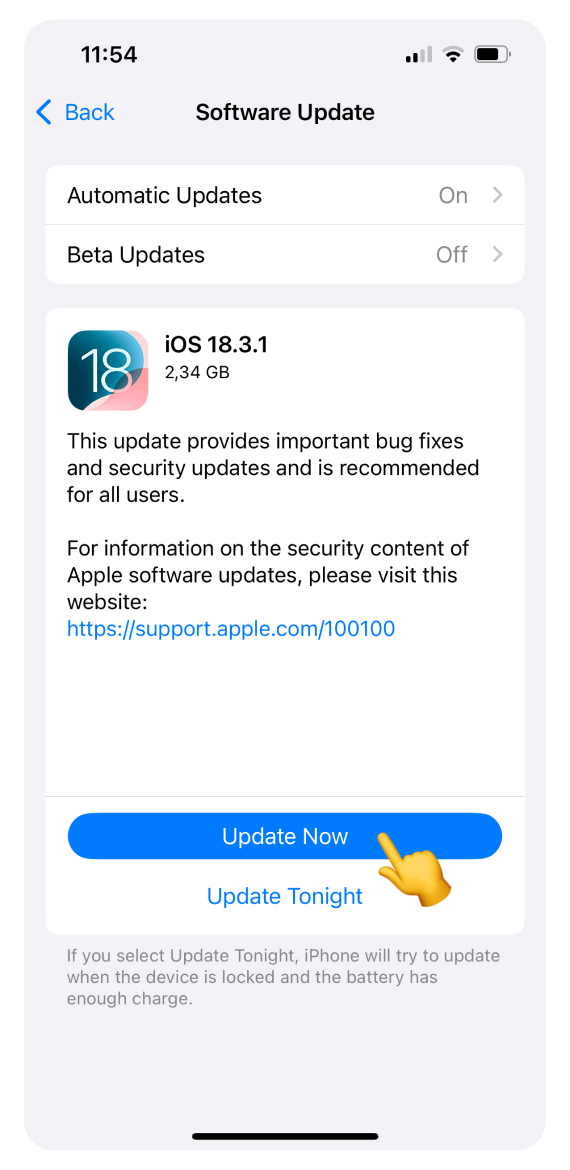
Tap Software Update.
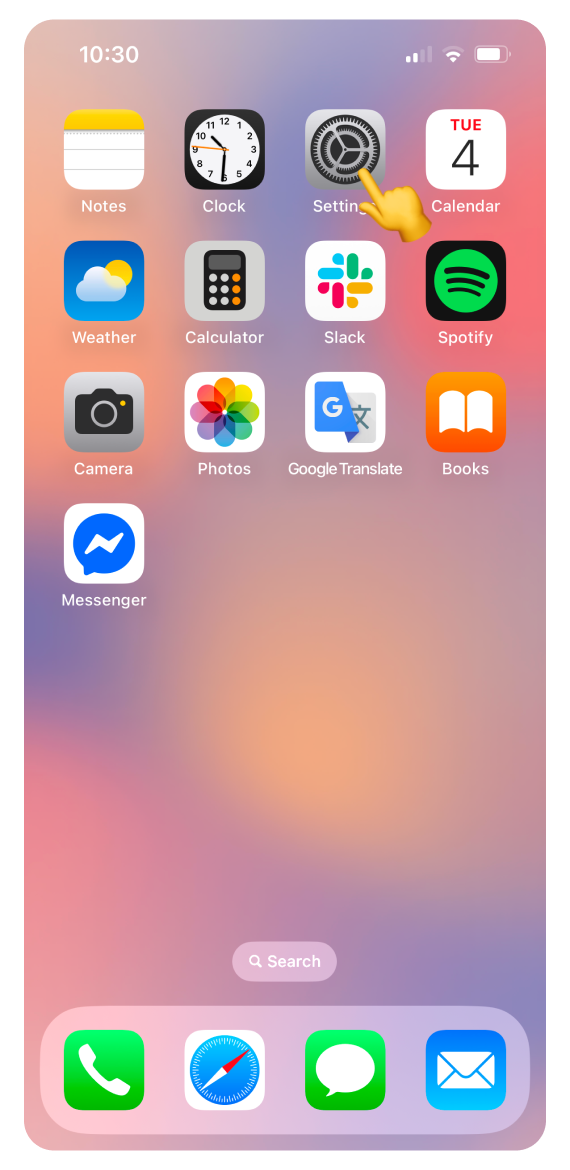
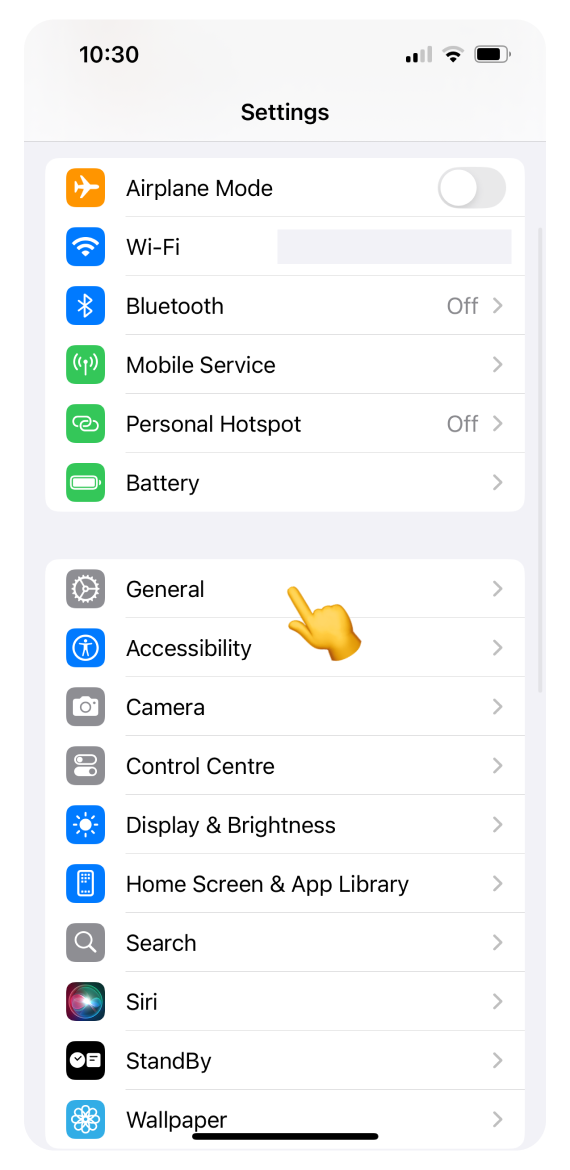
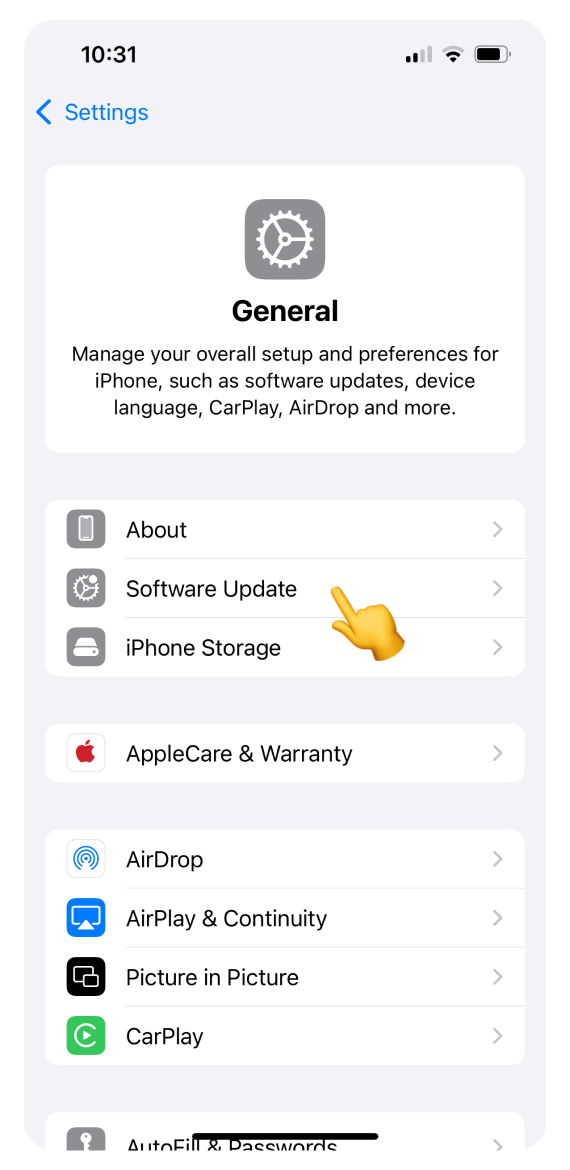
If an update is available, install it before trying to install your eSIM again.
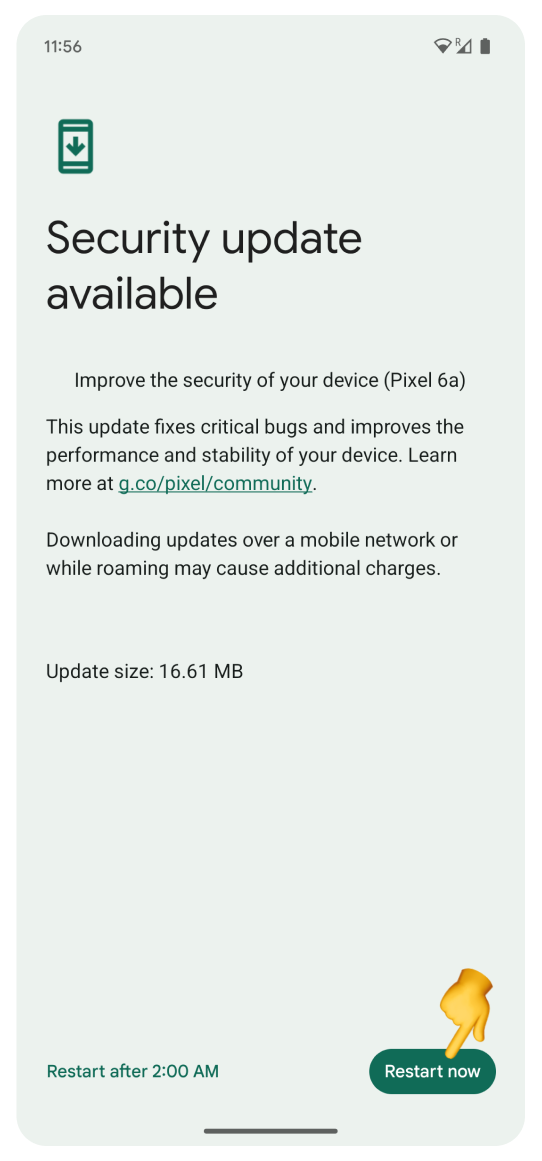
Open Settings and go to System.
Select Software updates.
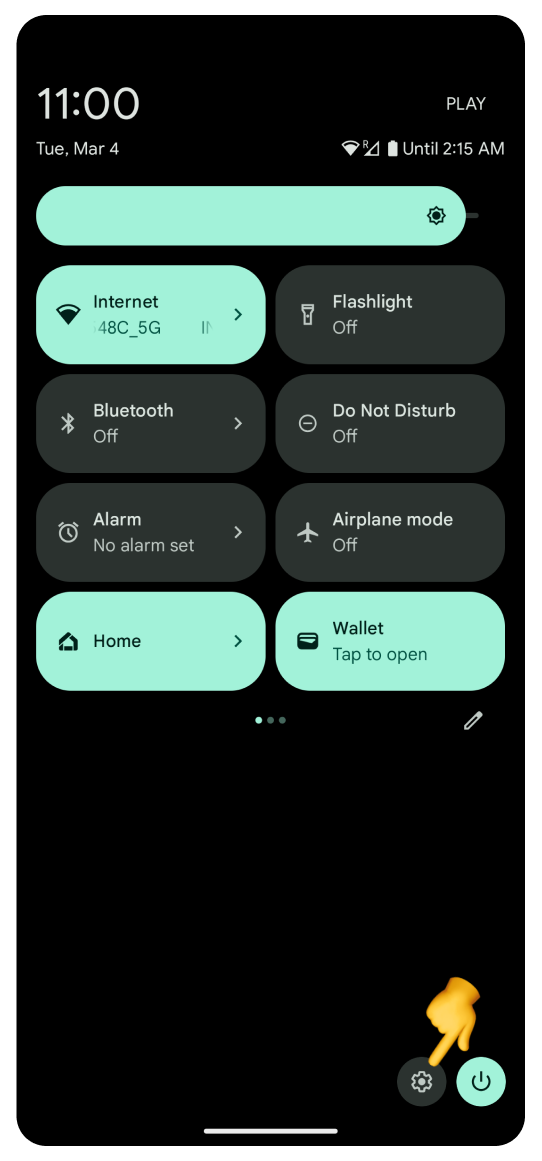
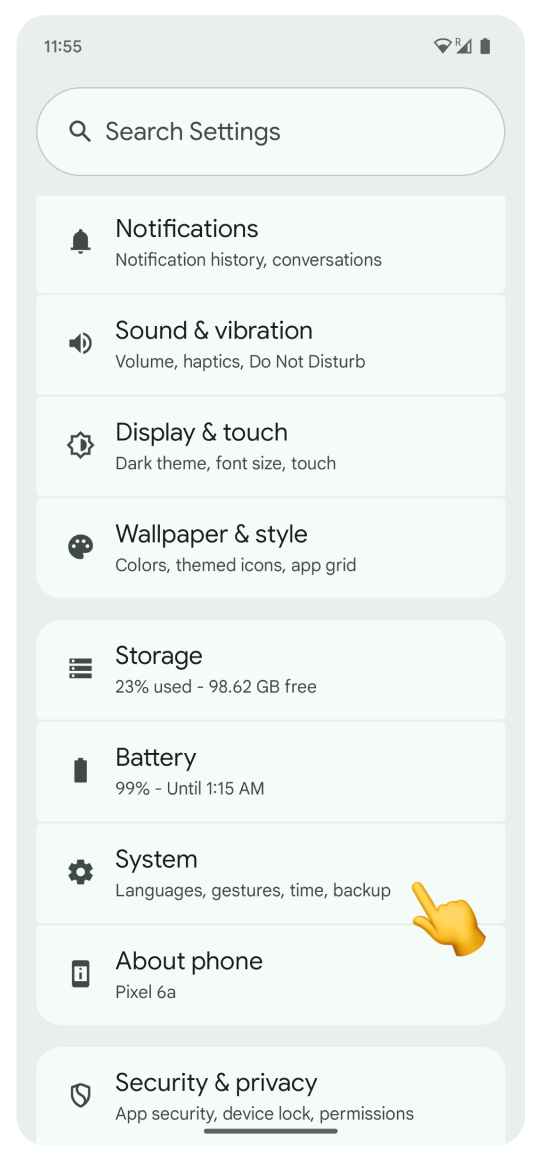
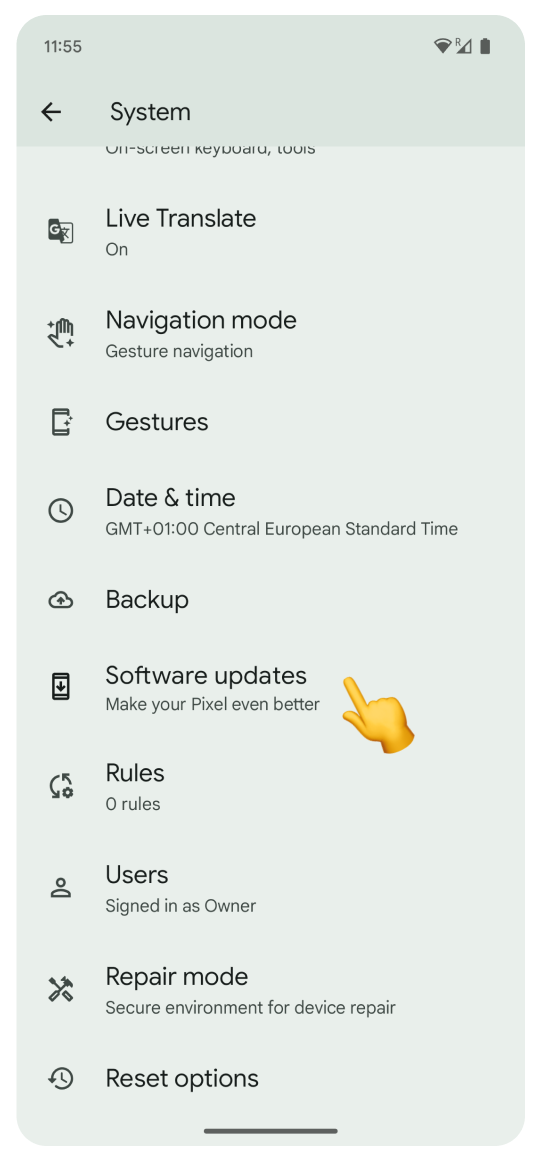
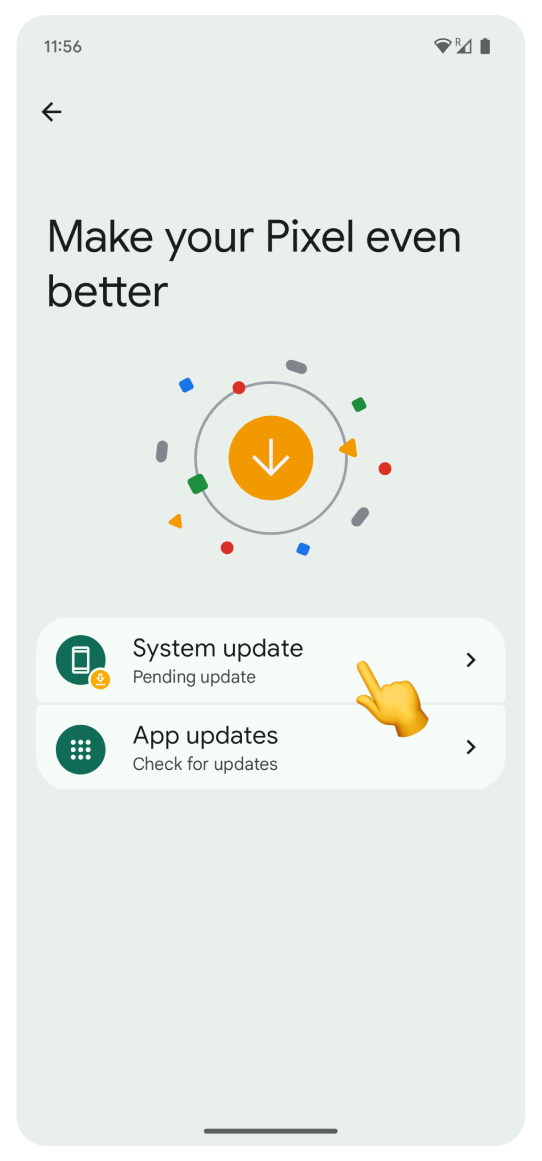
If there is an available update, tap System update.
Select Restart now.
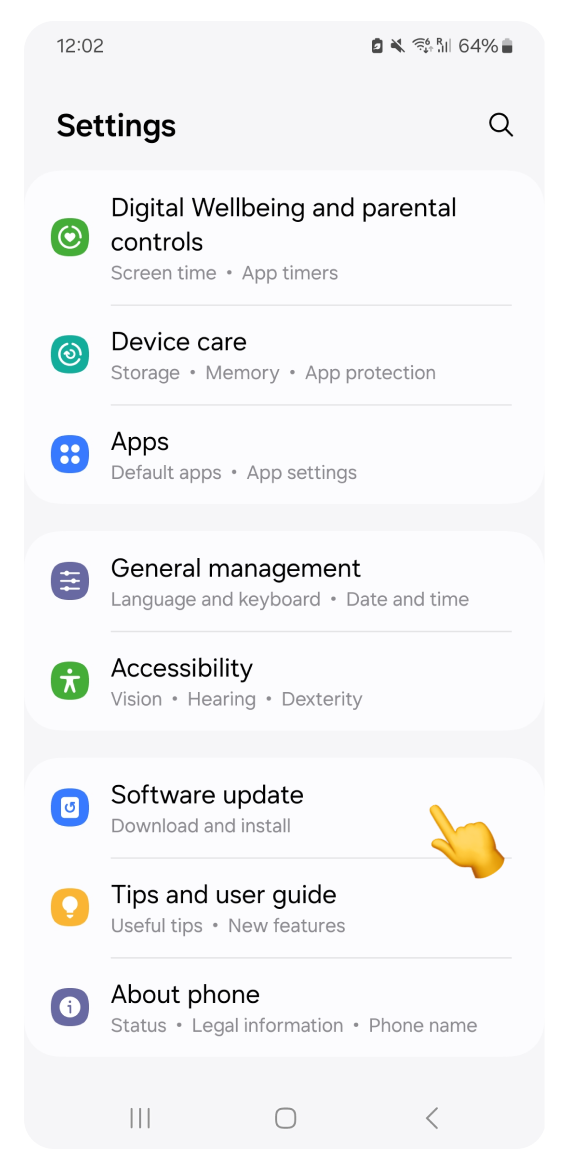
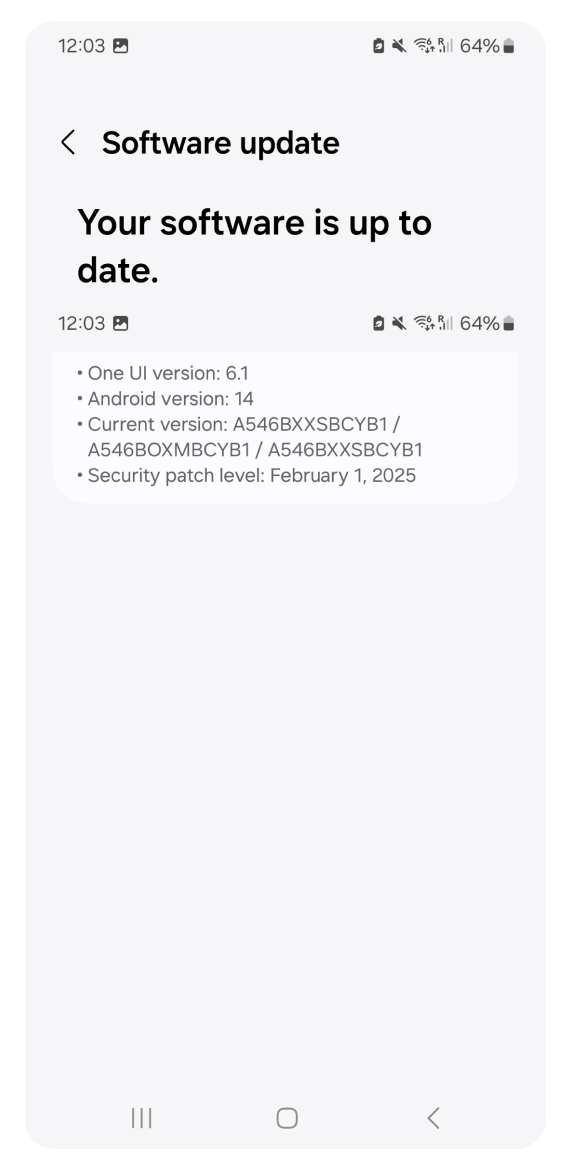
Open Settings and tap on Software update.
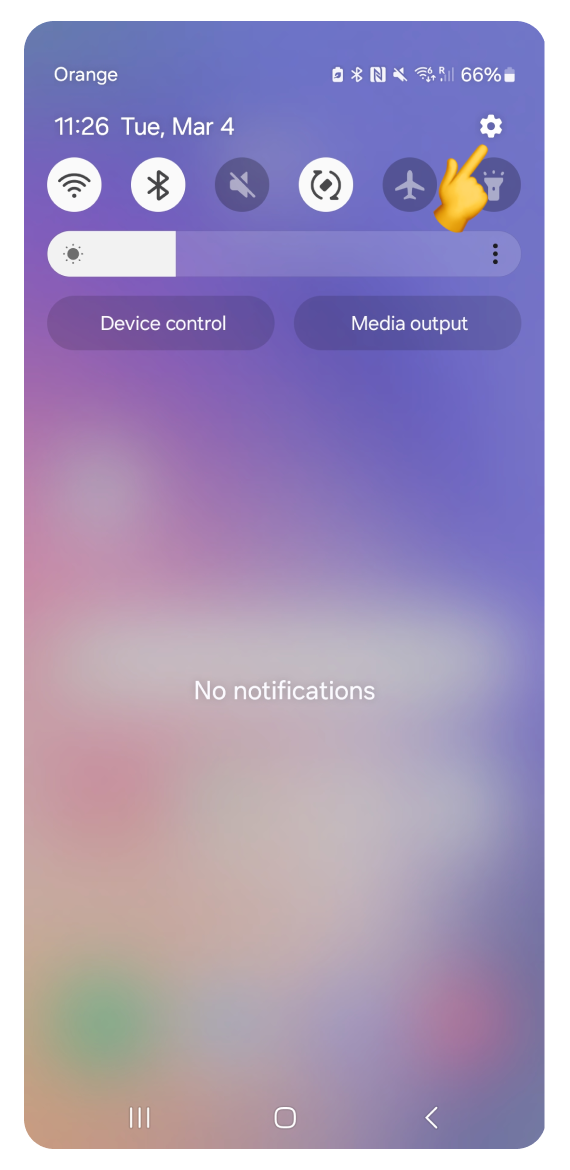
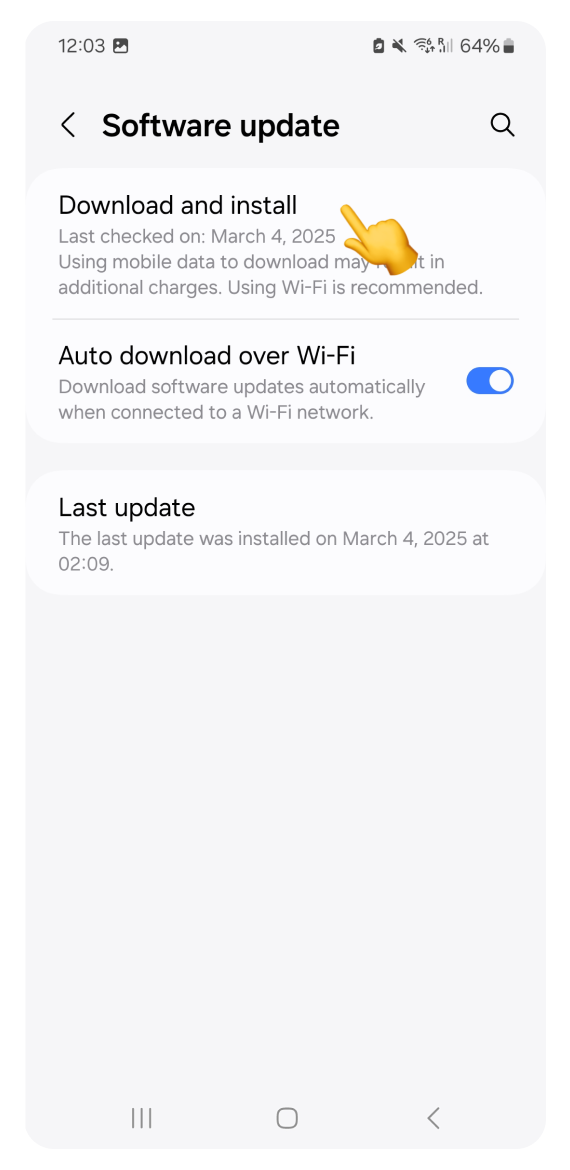
Tap Download and install.
If an update is available, follow the on-screen instructions to install the latest version. If your system is already up to date, you will see a confirmation view.
If you have confirmed the eSIM is not in your settings (Step 1) and your internet is stable, you can try the manual installation method.
If you're having problems with fast installation or scanning the QR code, you can install your eSIM manually by following the dedicated steps:
If you can’t install the eSIM by scanning QR code, try installing with the activation code:
If the installation fails using the QR code, try installing with the activation code: