APN settings tell your phone how to connect to mobile data networks. If they're incorrect or missing, your eSIM won't be able to access the internet.

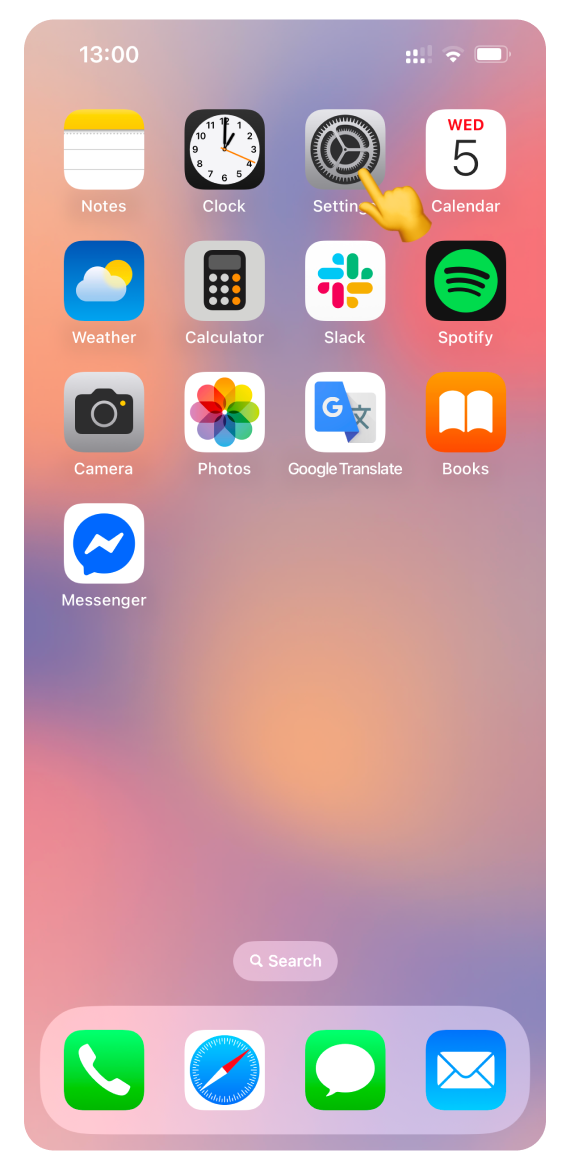
Open Settings
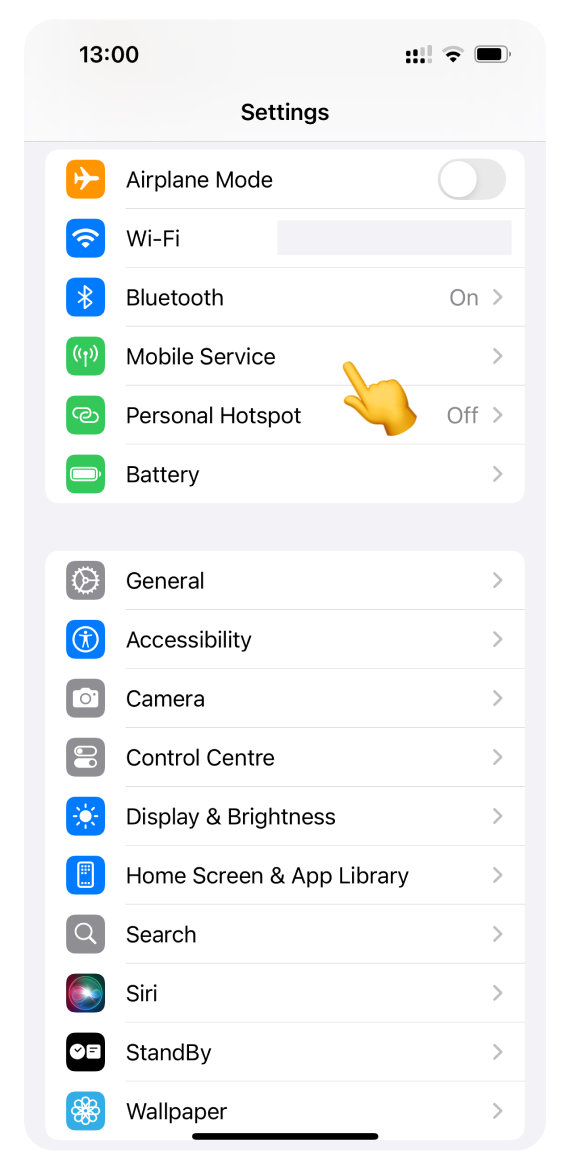
Go to Mobile Service (or Cellular)
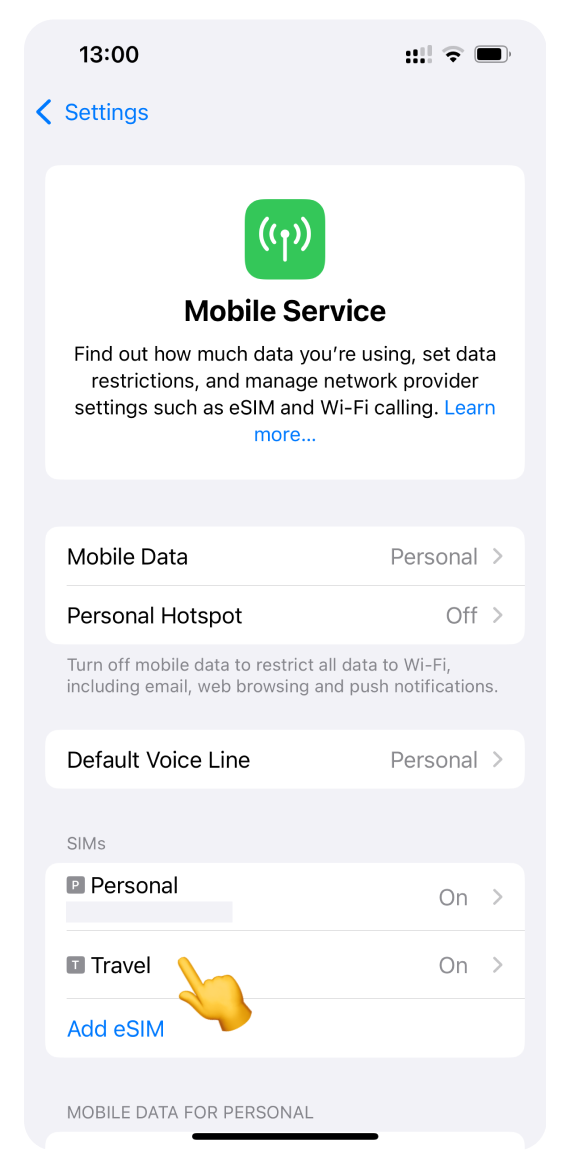
Tap your WonderConnect eSIM (it may be labeled as Travel, Secondary, Mobile Data, or something else)
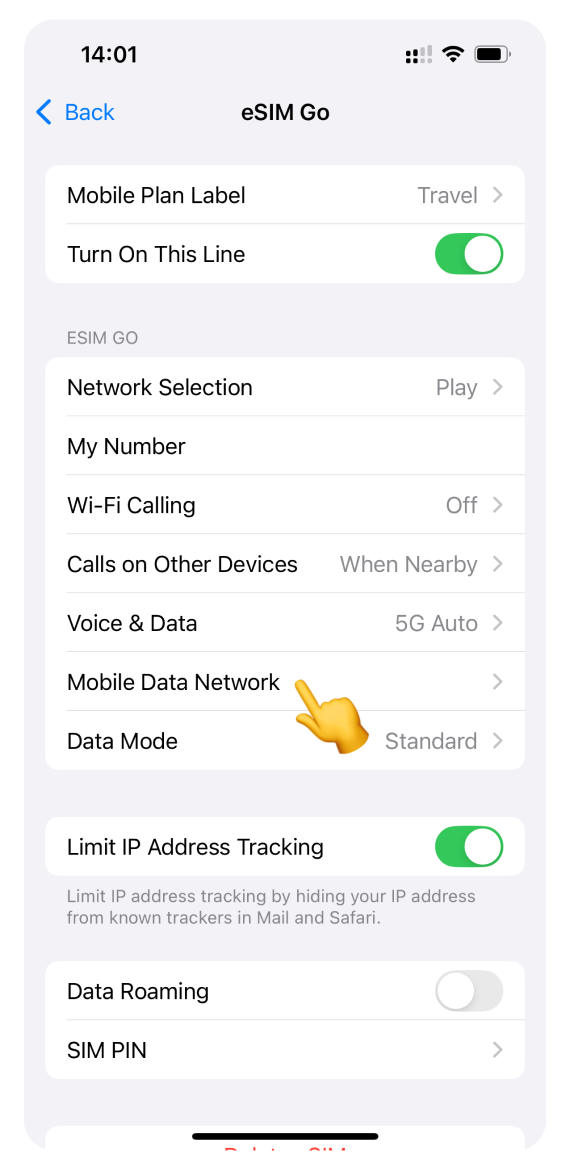
Scroll down and tap Mobile Data Network
Look at the APN field under "Mobile Data"
If it matches the APN in your eSIM details: Your APN is correct. If you're still having connection issues, APN is not the problem.
If it's different or empty:
Tap the APN field
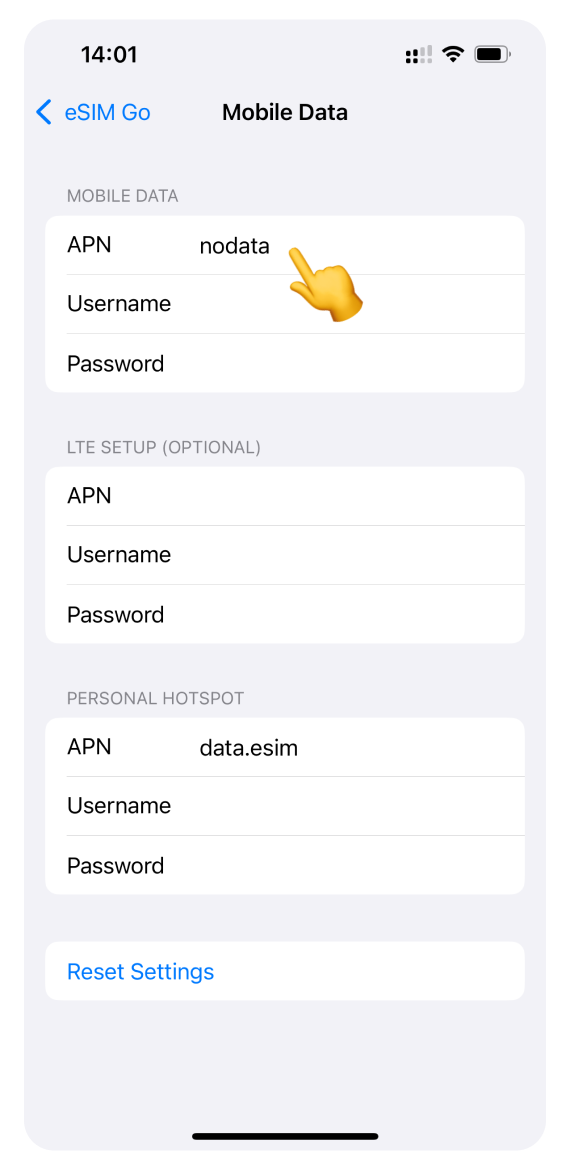
Type the APN from your eSIM details
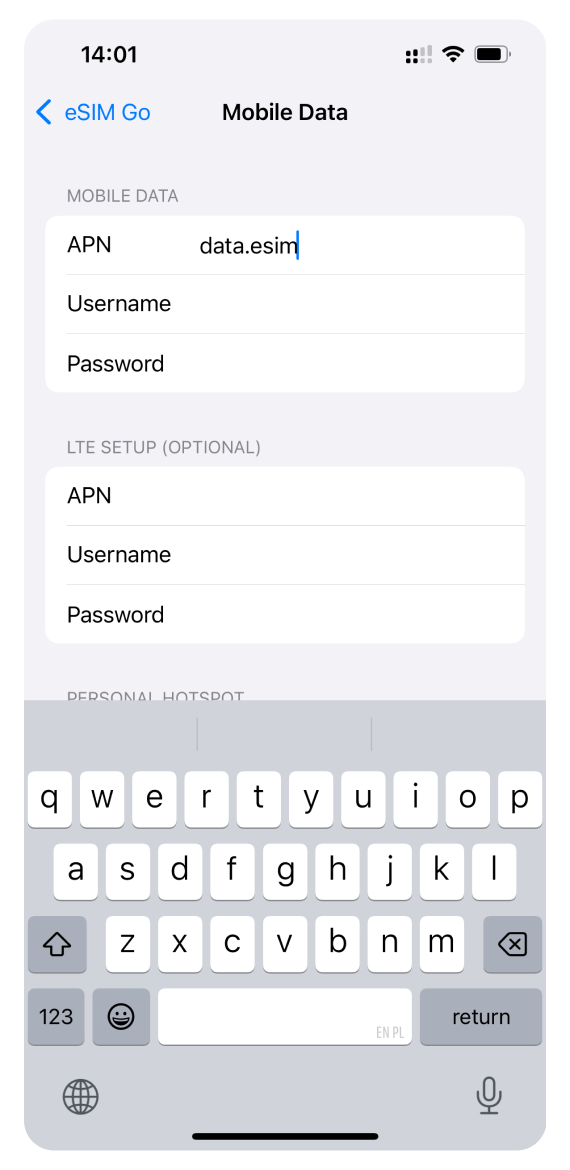
Type the APN from your eSIM details in APN for Personal Hotspot.
Close Settings
Wait 1-2 minutes and try browsing the internet. If you've set the correct APN and still can't connect to the internet, please check other steps in our troubleshooting guide.
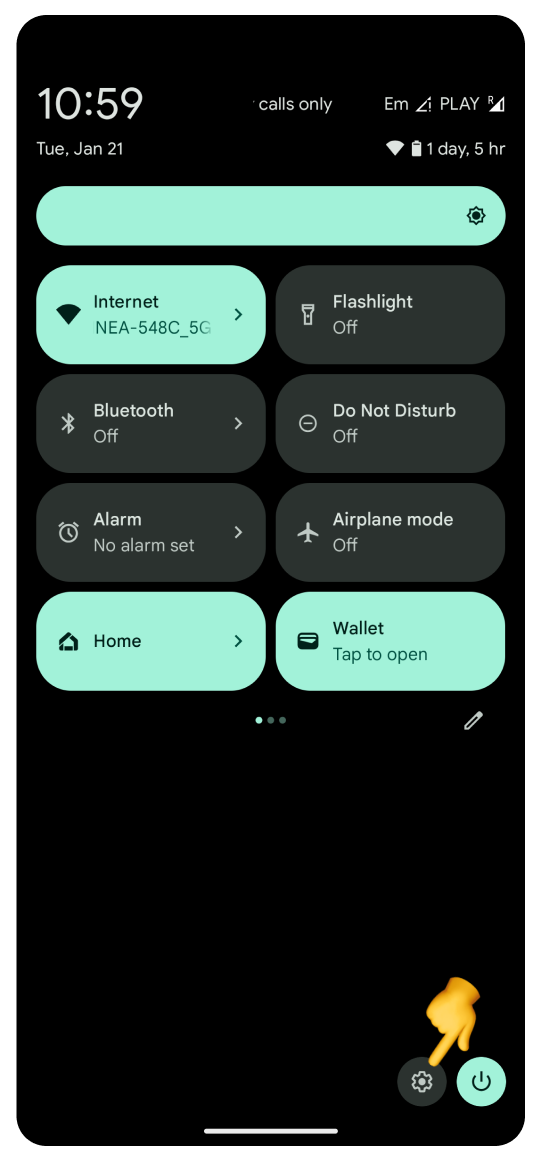
Open Settings
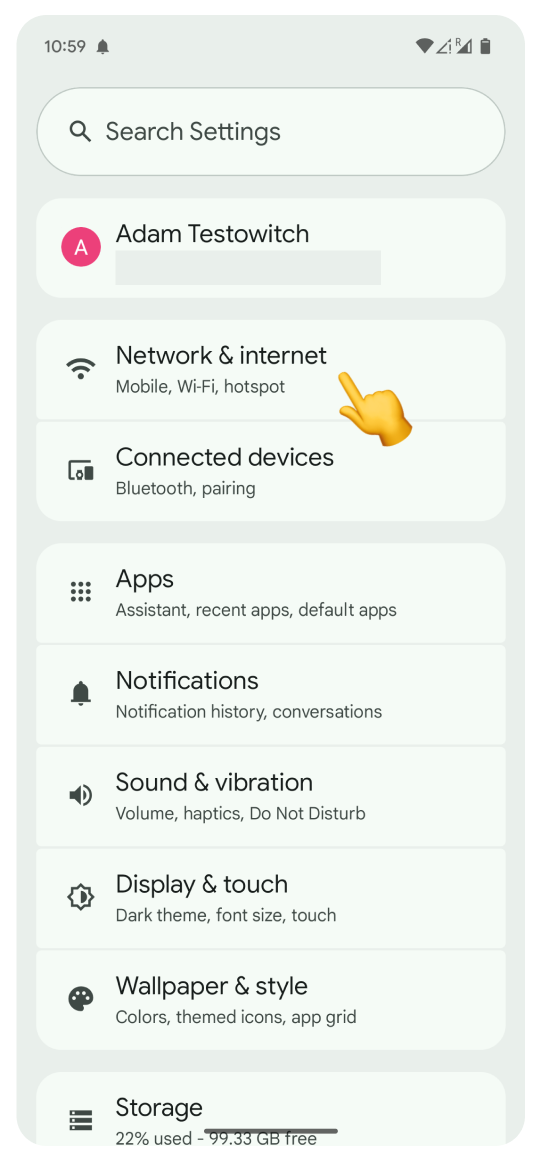
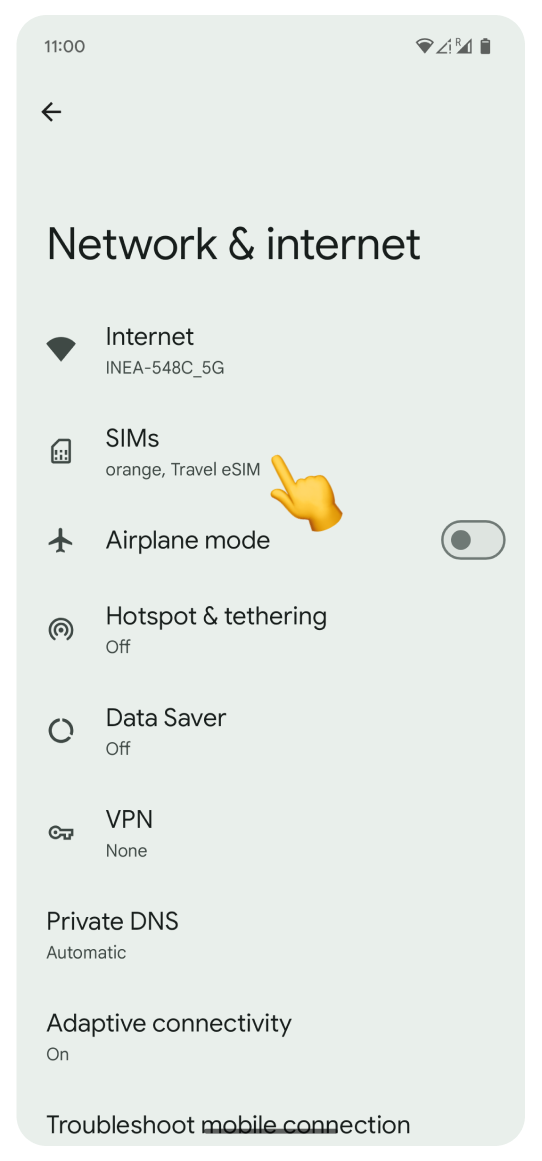
Go to Network & internet
Tap SIMs
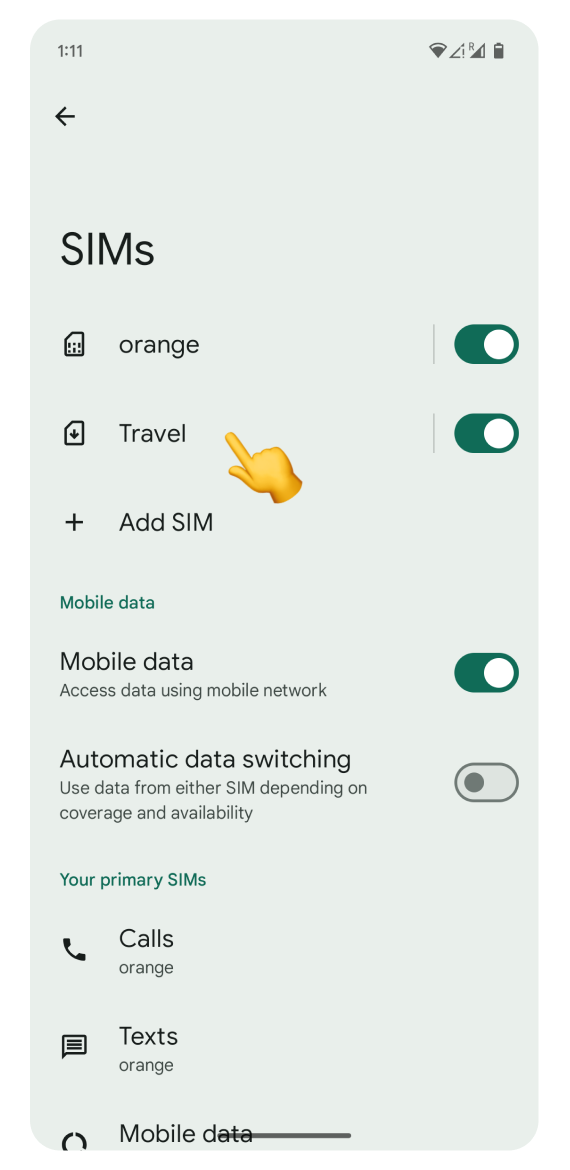
Tap your WonderConnect eSIM (it may be labeled as Travel, Secondary, Mobile Data, or something else)
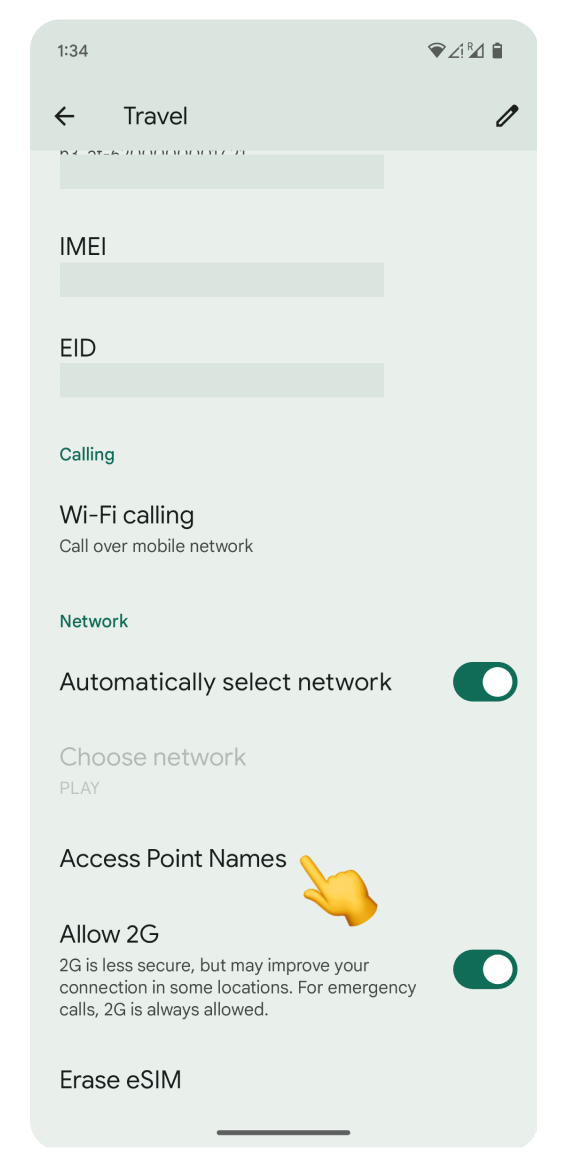
Scroll down and tap Access Point Names
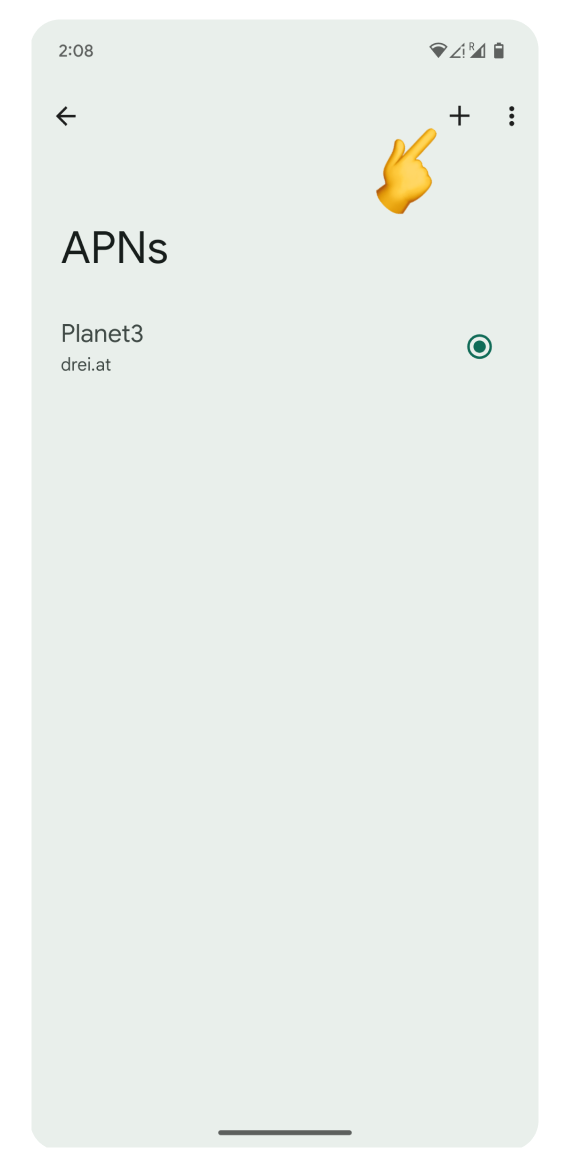
If it matches the APN in your eSIM details: Your APN is correct. If you're still having connection issues, APN is not the problem. → Go back to troubleshooting
If it's missing or a different APN is selected:
Tap the + icon (top right)
In the Name and APN fields, type the APN from your eSIM details.
After you enter Name and APN, tap Save
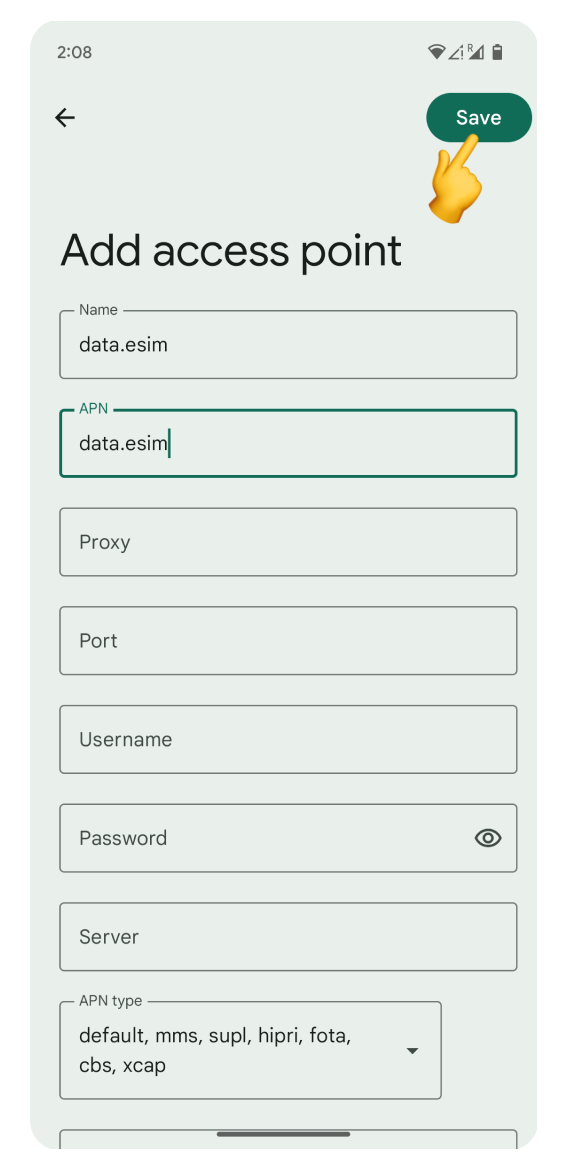
Go back to the Access Point Names list
Select the APN you’ve added by tapping it
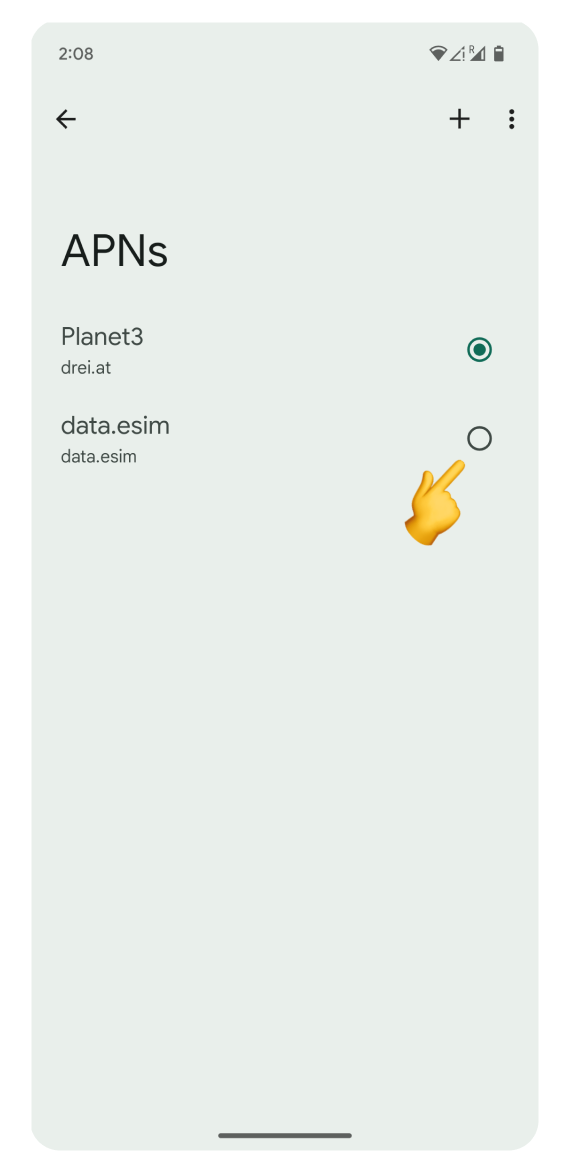
Close Settings
Wait 1-2 minutes and try browsing the internet. If you've set the correct APN and still can't connect to the internet, please check other steps in our troubleshooting guide.

Open Settings
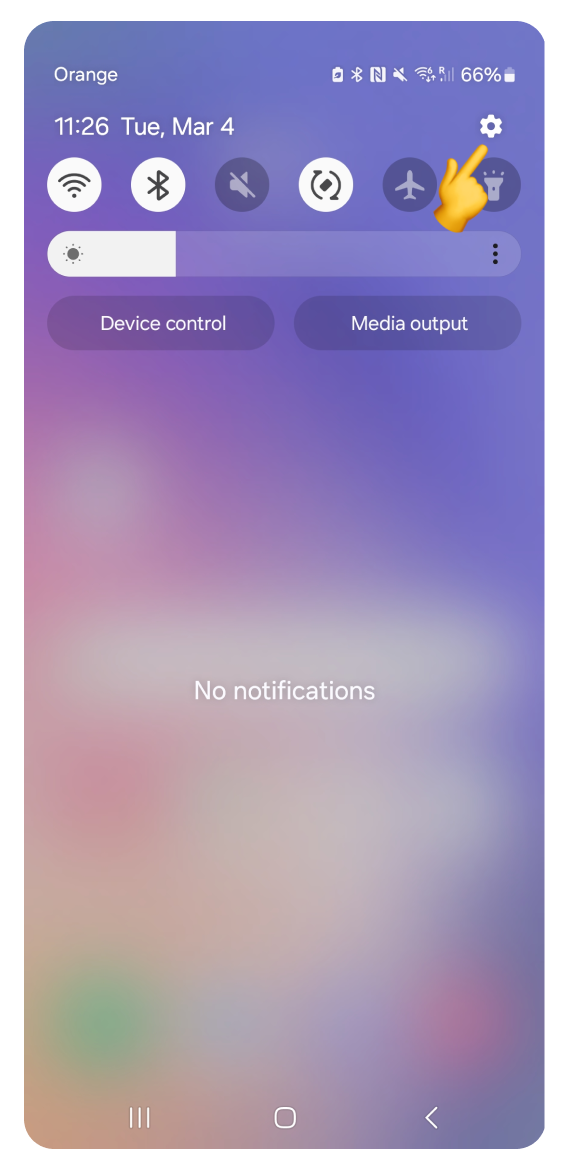
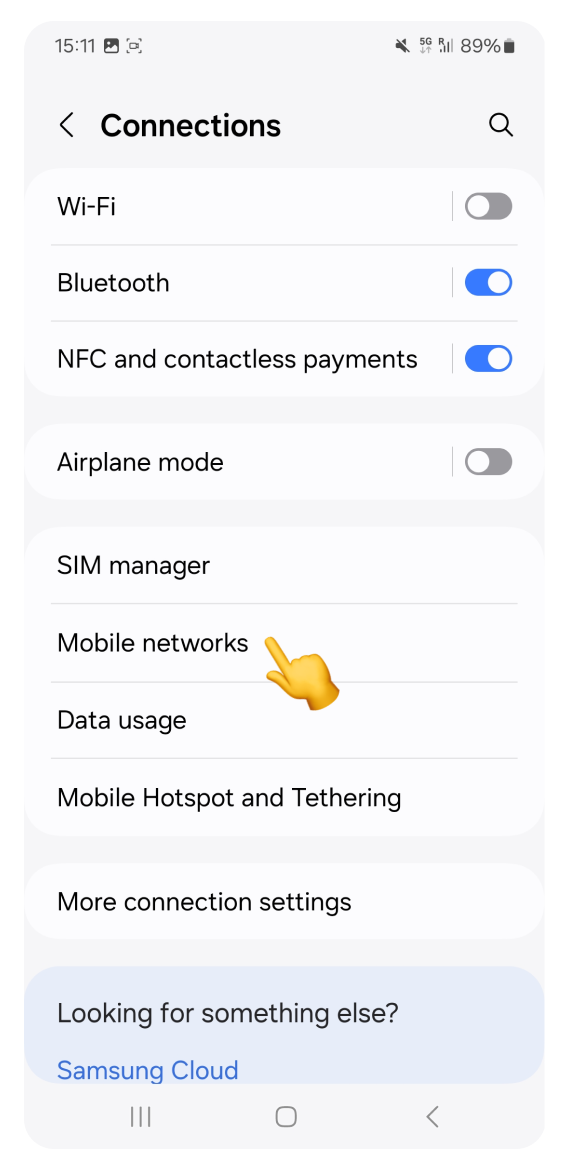
Go to Connections
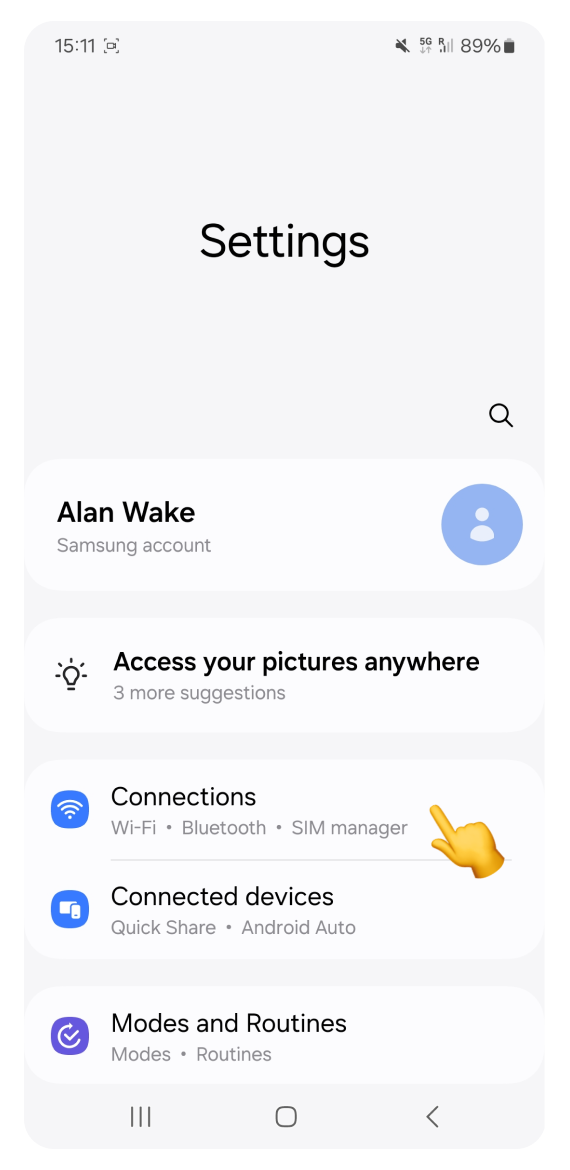
Tap Mobile Networks
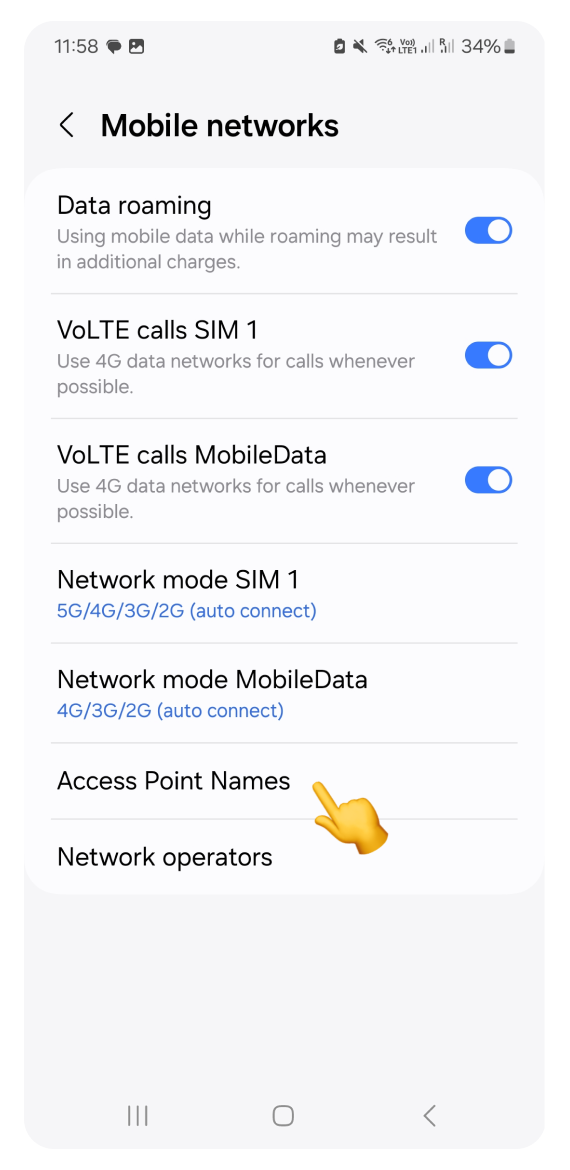
Tap Access Point Names
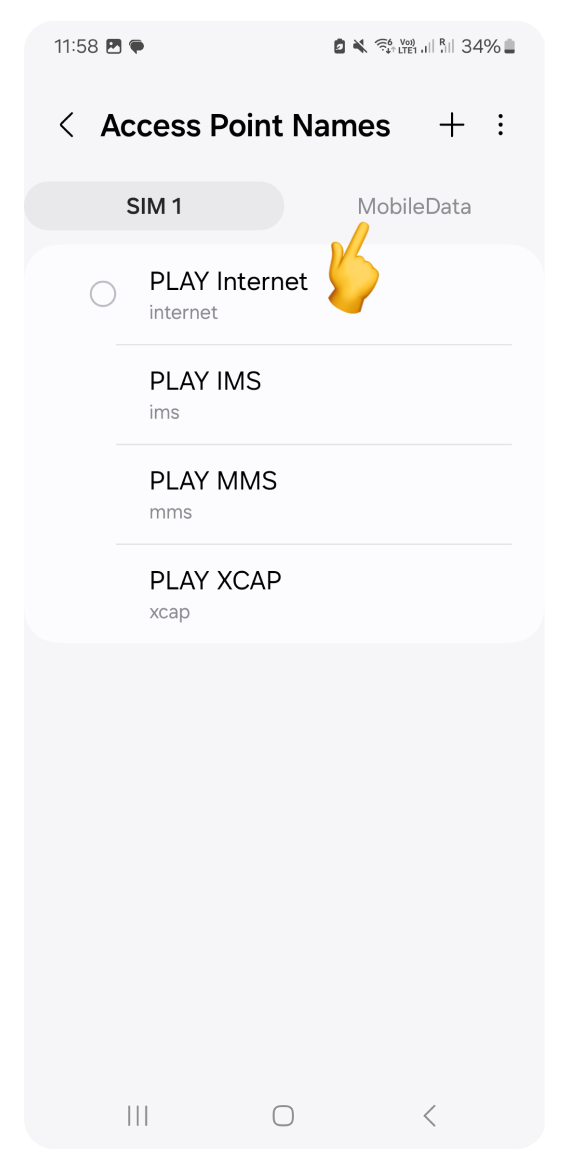
Switch to the eSIM / mobile data tab at the top
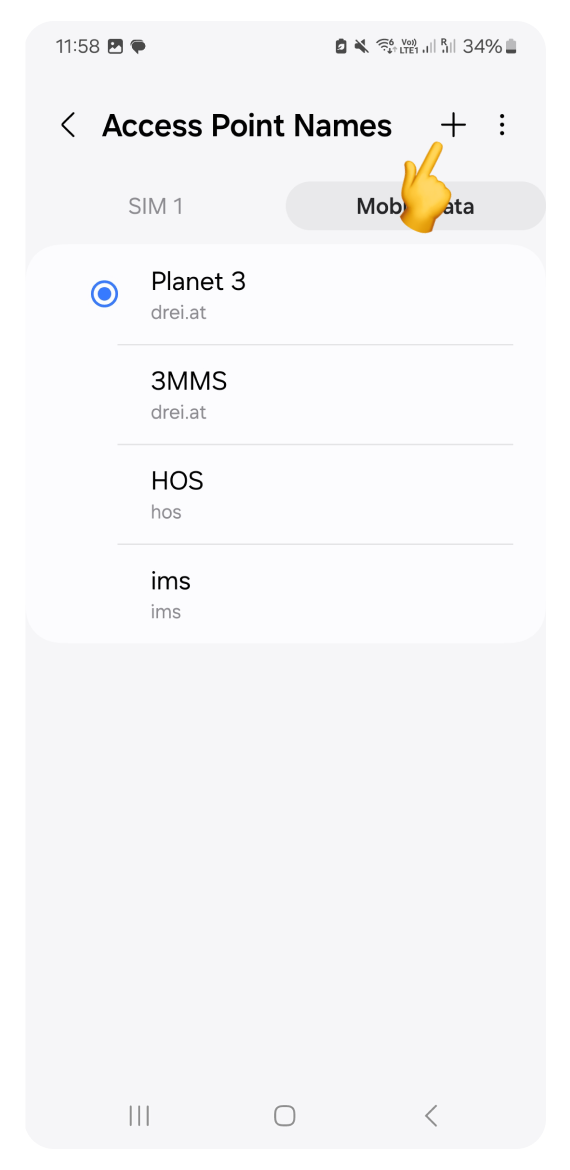
If it matches the APN in your eSIM details: Your APN is correct. If you're still having connection issues, APN is not the problem. → Go back to troubleshooting
If it's missing or a different APN is selected:
Tap the + icon
In the Name and APN fields, type the APN from your eSIM details.
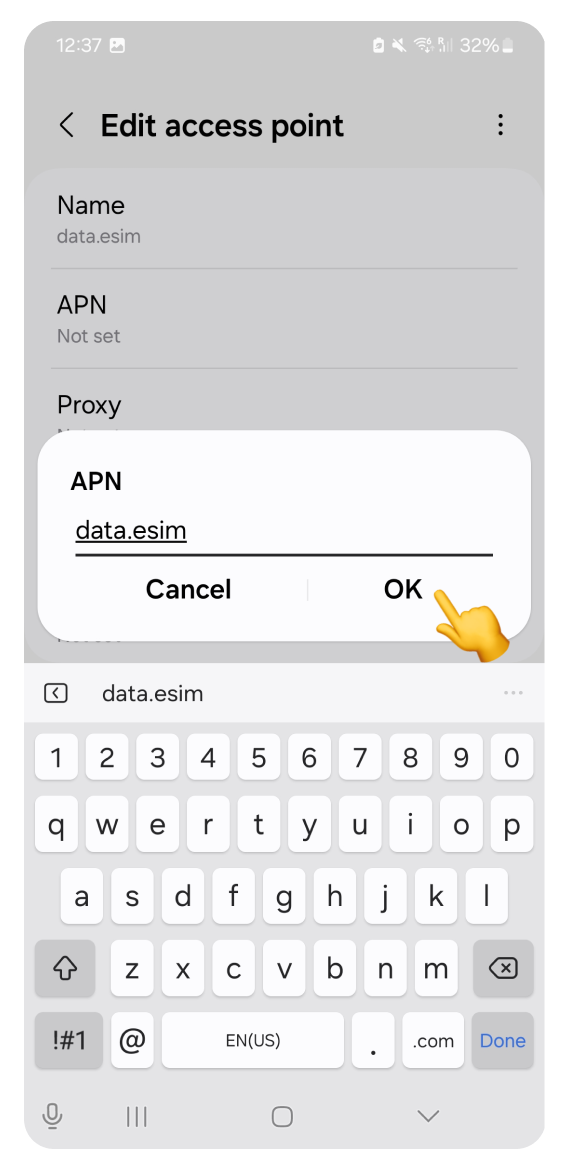
Tap OK or Save
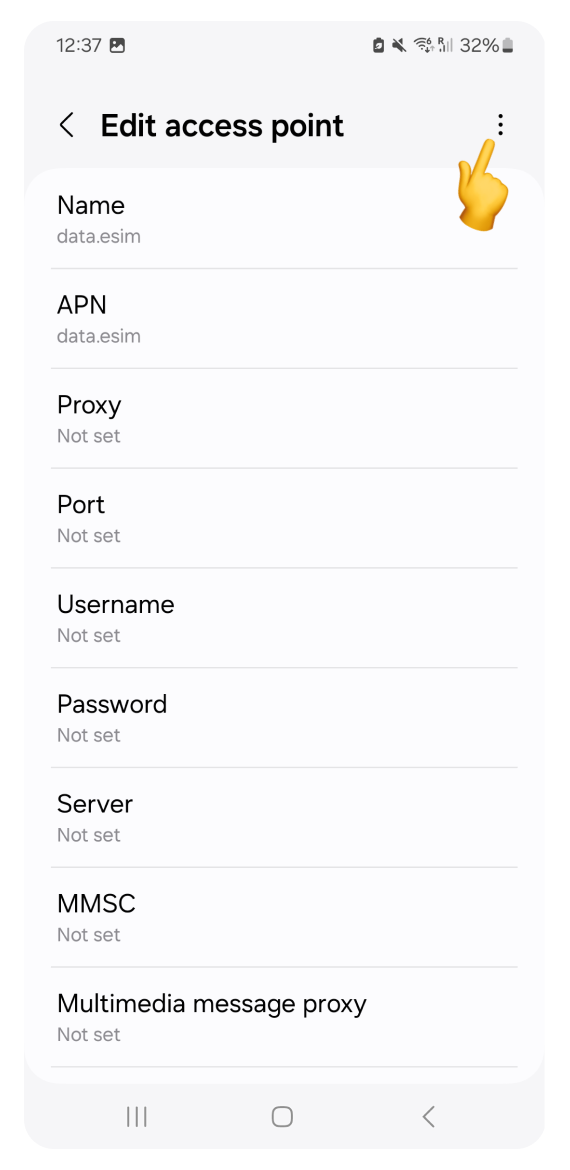
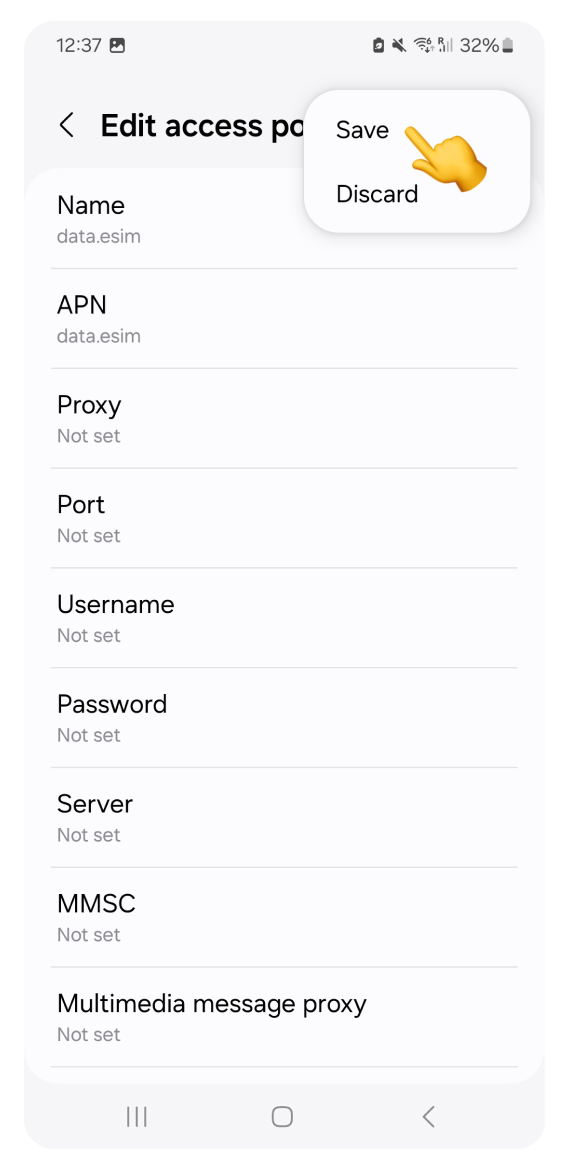
Tap the three dots and select Save
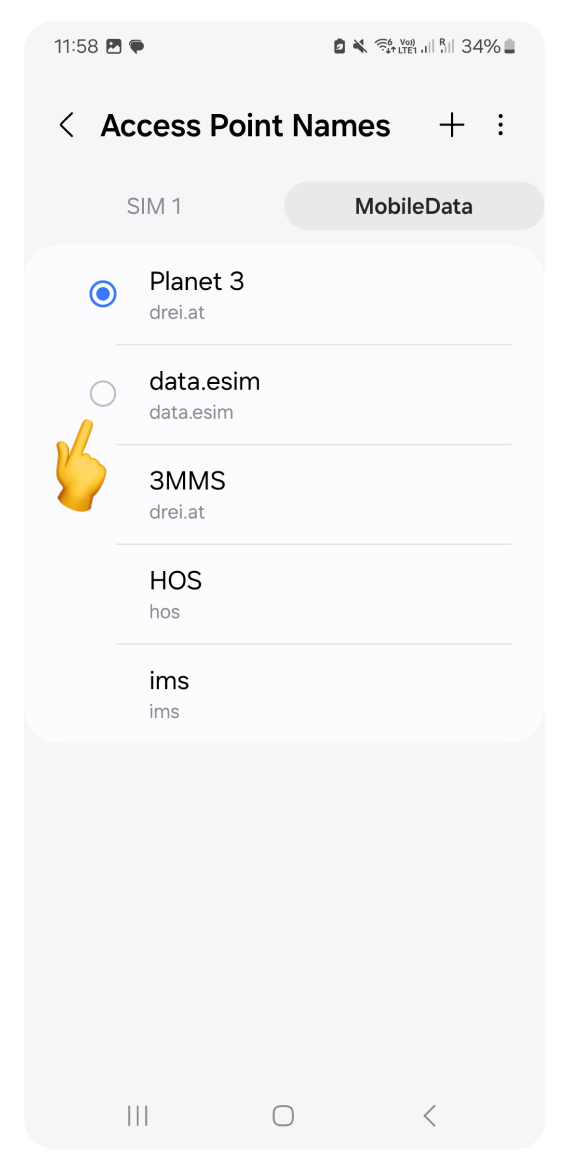
Go back to the Access Point Names list
Select the APN from your eSIM details by tapping it
Close Settings
Wait 1-2 minutes and try browsing the internet. If you've set the correct APN and still can't connect to the internet, please check other steps in our troubleshooting guide.